Guide
User manual
Forget me never, one nudge at a time — a calm guide to everything in the app.
Version 0.2.0 · iPhone (TestFlight) · Data stays on your phone
1. Welcome
Nudge me Ready is a gentle reminder app for the small and large things that keep life moving: appointments, notes, lists, routines, occasions, and the people who support you.
Everything is designed to stay on your phone. There is no cloud account in this version. You choose what to share when you invite someone to your Crew or ask for help.
2. Getting started
On first install, the app asks you to create a profile before you enter.
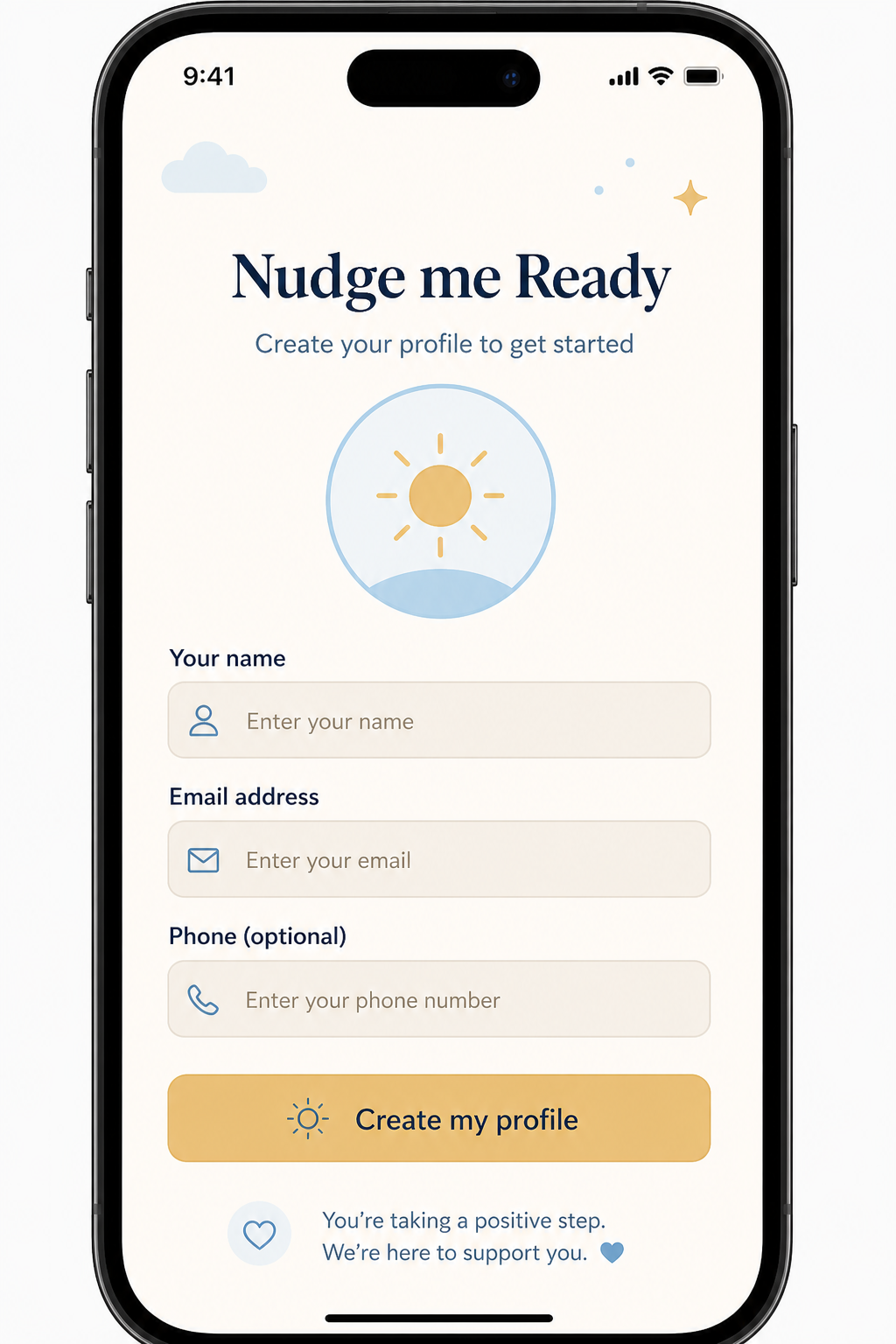
- Open Nudge me Ready from TestFlight.
- Choose a profile picture or icon, then enter your name and email. Phone is optional.
- Tap Create my profile. Your email is also used later if you forget a PIN or password.
- Optionally set up Face ID, a PIN, or a password (see next section), or choose Not now — continue to app.
- On the welcome screen, tap Nudges ready to open Home, or Add a nudge to start capturing straight away.
3. Protect your data
App lock keeps notes, appointments, crew details, and settings private if someone else picks up your phone. Your information is encrypted on the device.
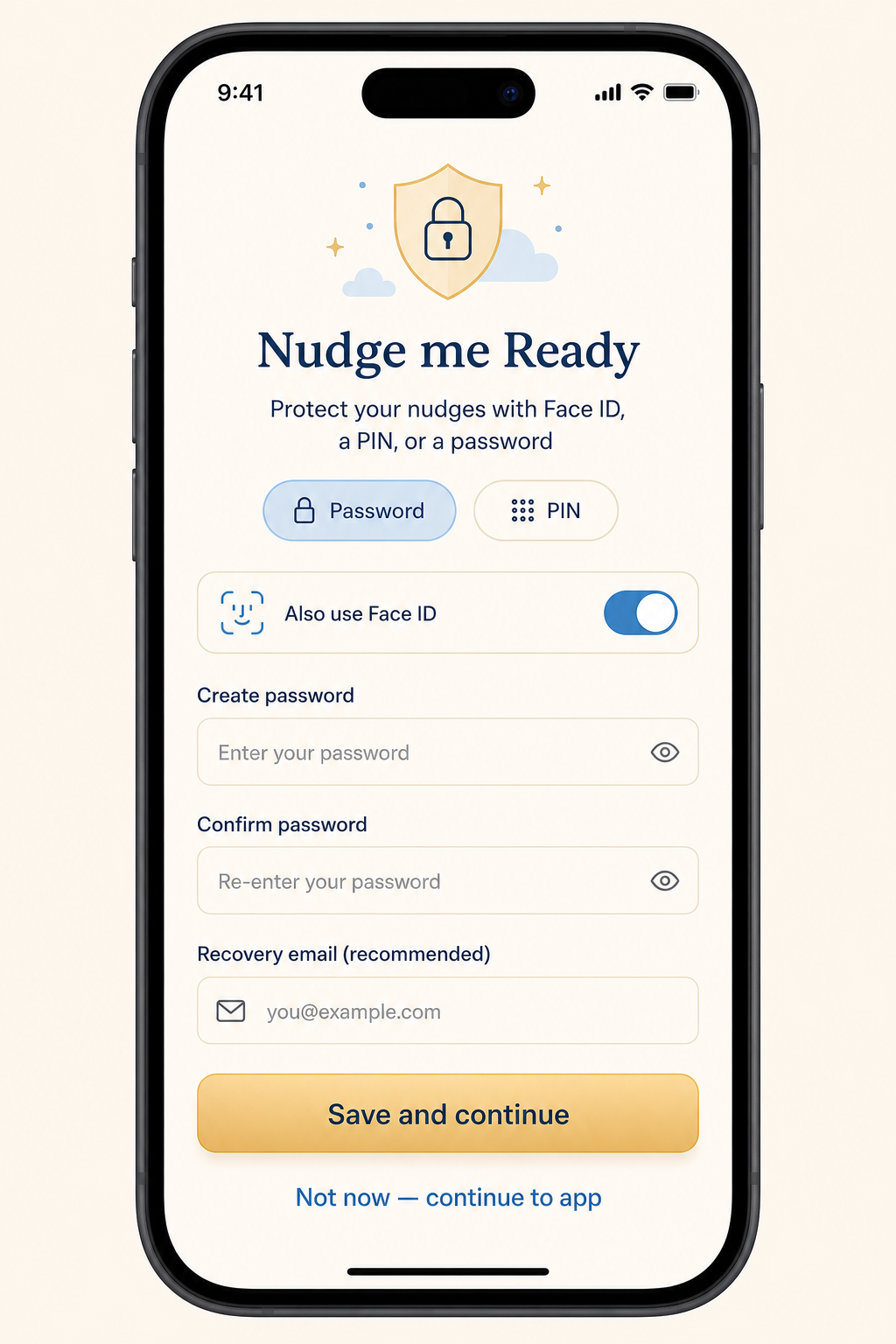
Turn on lock
- Choose Password (letters and a number, 8+ characters) or PIN (4–8 digits).
- Optionally turn on Also use Face ID (or your device biometric).
- Confirm your credential and add a recovery email.
- Tap Save and continue.
- If a recovery code is shown, write it down somewhere safe — it will not be shown again — then tap I’ve saved it — continue.
Later, from Settings
Open More → Settings → Security to turn lock on or off, change Face ID, save a recovery email, create a new recovery code, or lock the app now.
4. Find your way around
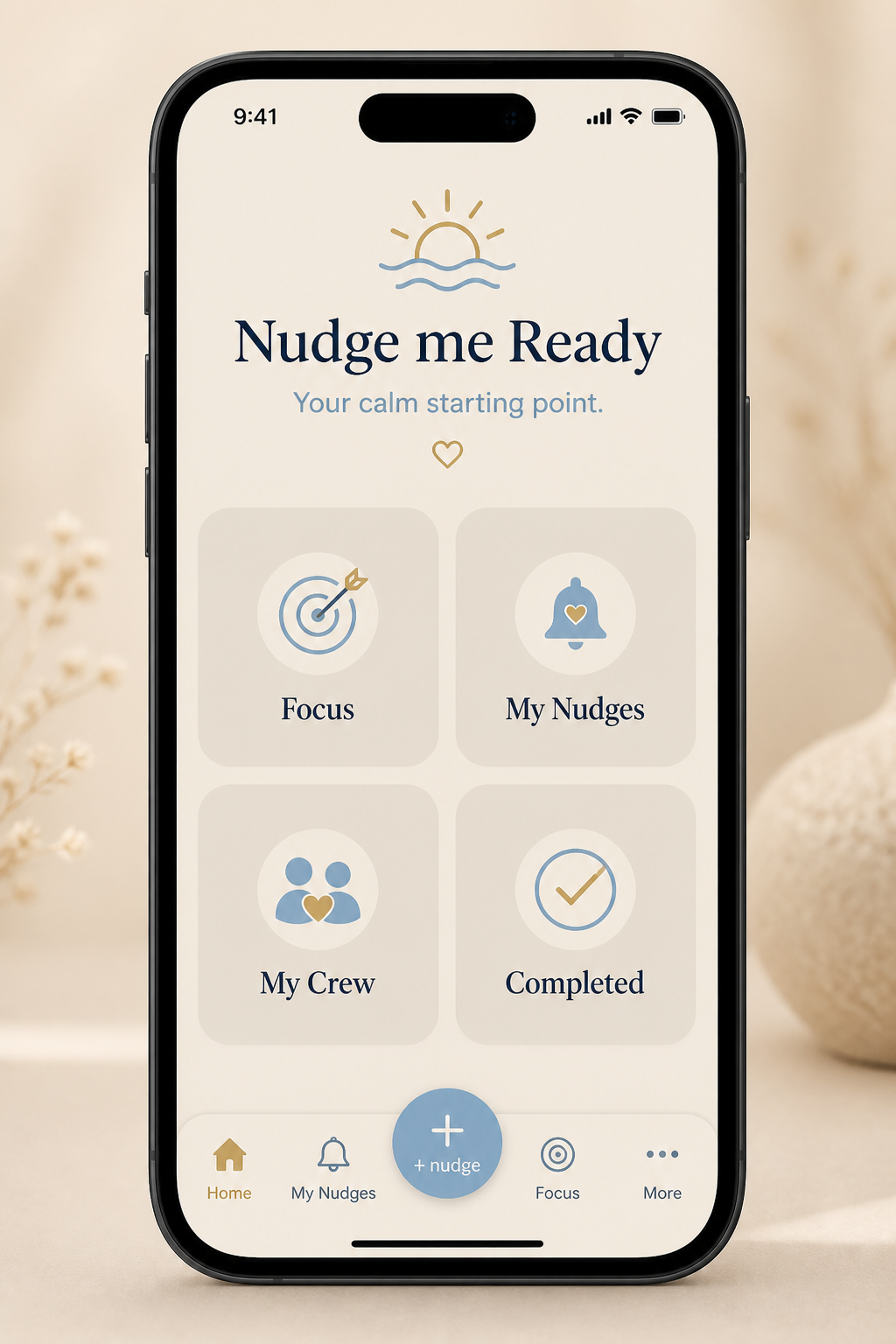
The bottom bar is your main map:
| Tab | What it is for |
|---|---|
| Home | Calm hub with shortcuts to Focus, My Nudges, My Crew, and Completed. |
| My Nudges | Everything still open (and filters for all or completed). |
| +nudge | Say something out loud, or pick a type to create. |
| Focus | One gentle timed session on a single thing. |
| More | Profile, Settings, My Crew, Crews I Support, and more. |
5. Add nudges
A nudge is any reminder or note you save — a dentist visit, a shopping list, a birthday, a quiet thought for later.
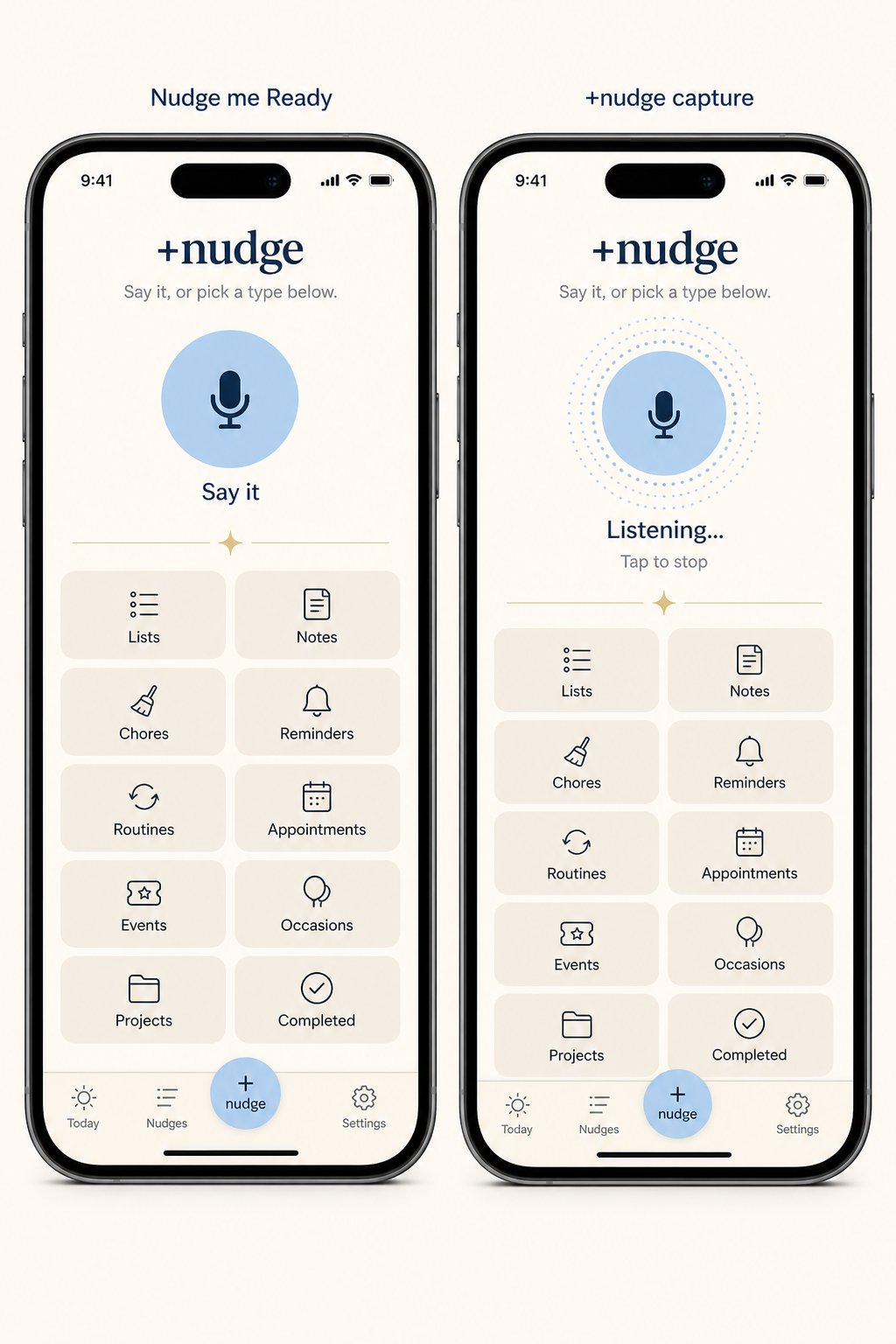
Say it
- Open +nudge.
- Tap Say it and speak naturally (for example: “Remind me to take the bins out tomorrow”).
- Tap Done speaking. The app suggests a type and opens the details screen so you can refine and save.
Voice needs a TestFlight or development build (not Expo Go) and microphone / speech permission.
Pick a type
From the same screen, tap a card such as Appointments, Lists, or Notes, then create or open an item.
6. Nudge types explained
Each type has fields that fit how you use it. You can often speak into a field with the mic, or hear text read aloud.
| Type | Use it for | Highlights |
|---|---|---|
| Task | One thing to do | When (today / tomorrow / pick date), where, contact, reminder, notes |
| Appointment | Fixed time with someone or somewhere | Date & time, place, guests from Contacts, travel time, calendar link, email invites |
| Event | Dinners, parties, dated plans | Venue, guests, prep plan (travel / ready / steps), calendar |
| Occasion | Birthdays and yearly days | Repeats yearly, gift ideas, card/present prompts, reminder schedule |
| Reminder | A timed prompt | Speaking text, 10-minute nudge, contact, repeat, push/email notify |
| Routine | Regular habits | Daily / weekdays / weekly / monthly, time, pause, gentle tracking |
| Chore | House jobs | Simple chore fields, held lightly |
| List | Checklists & shopping | Items, paste a list, suggestions, share sheet |
| Note | Thoughts to keep | Optional follow-up: turn into task or add reminder |
| Project | Bigger goals in steps | Goal, target date, linked nudges as children |
On any details screen, use Save, mark Complete, or Delete. Many screens also offer Just keep it simple to hide extra fields.
7. My Nudges
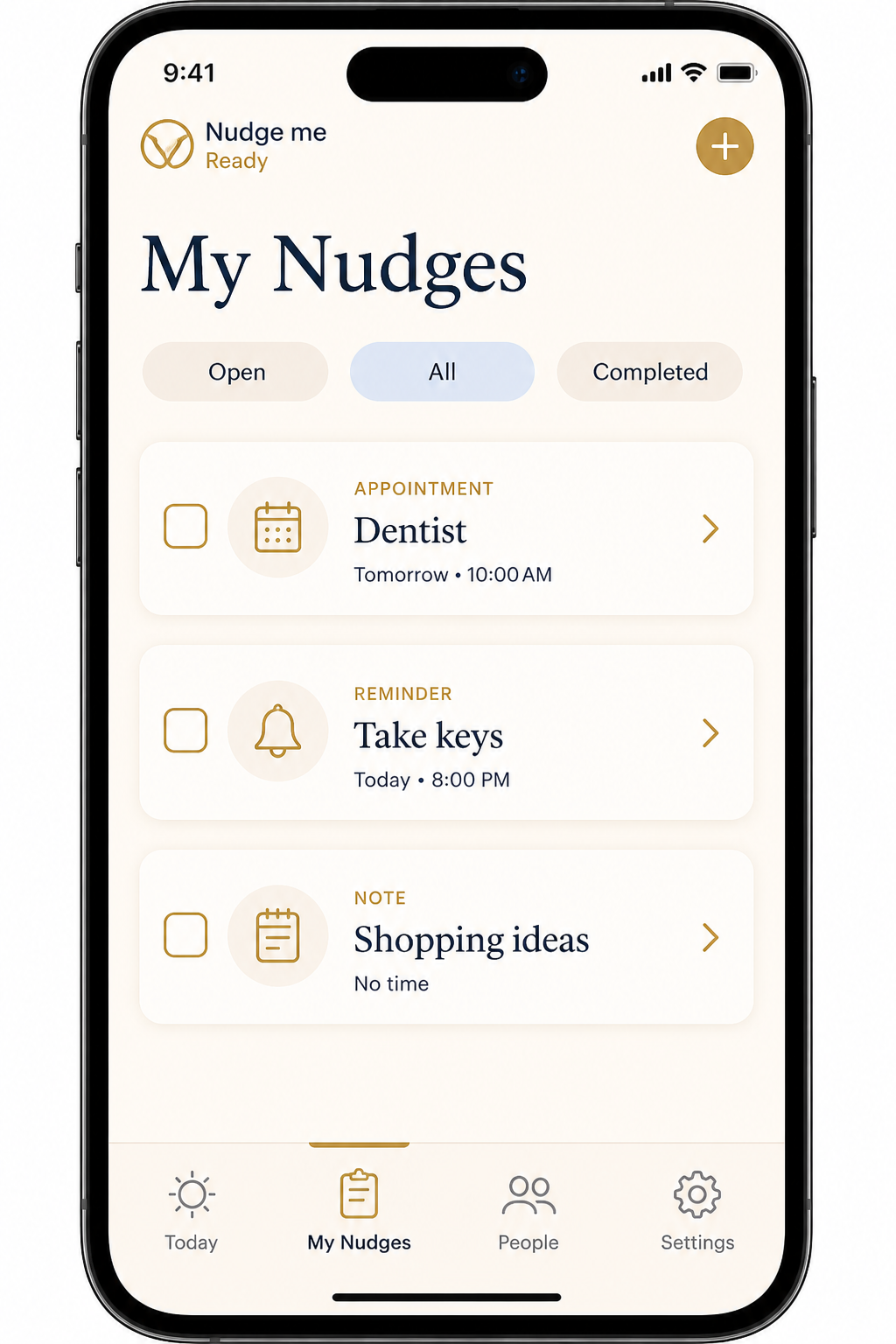
- Filter with Open, All, or Completed.
- Narrow by type (Appointment, Reminder, List, and so on).
- Tap a row to open details; use the checkbox to complete; delete when you no longer need it.
- If you support someone in a Crew, the Crew switcher at the top lets you view their nudges.
Completed (from Home or +nudge browse) shows history by date. Everything / My World offers search across types.
8. Focus
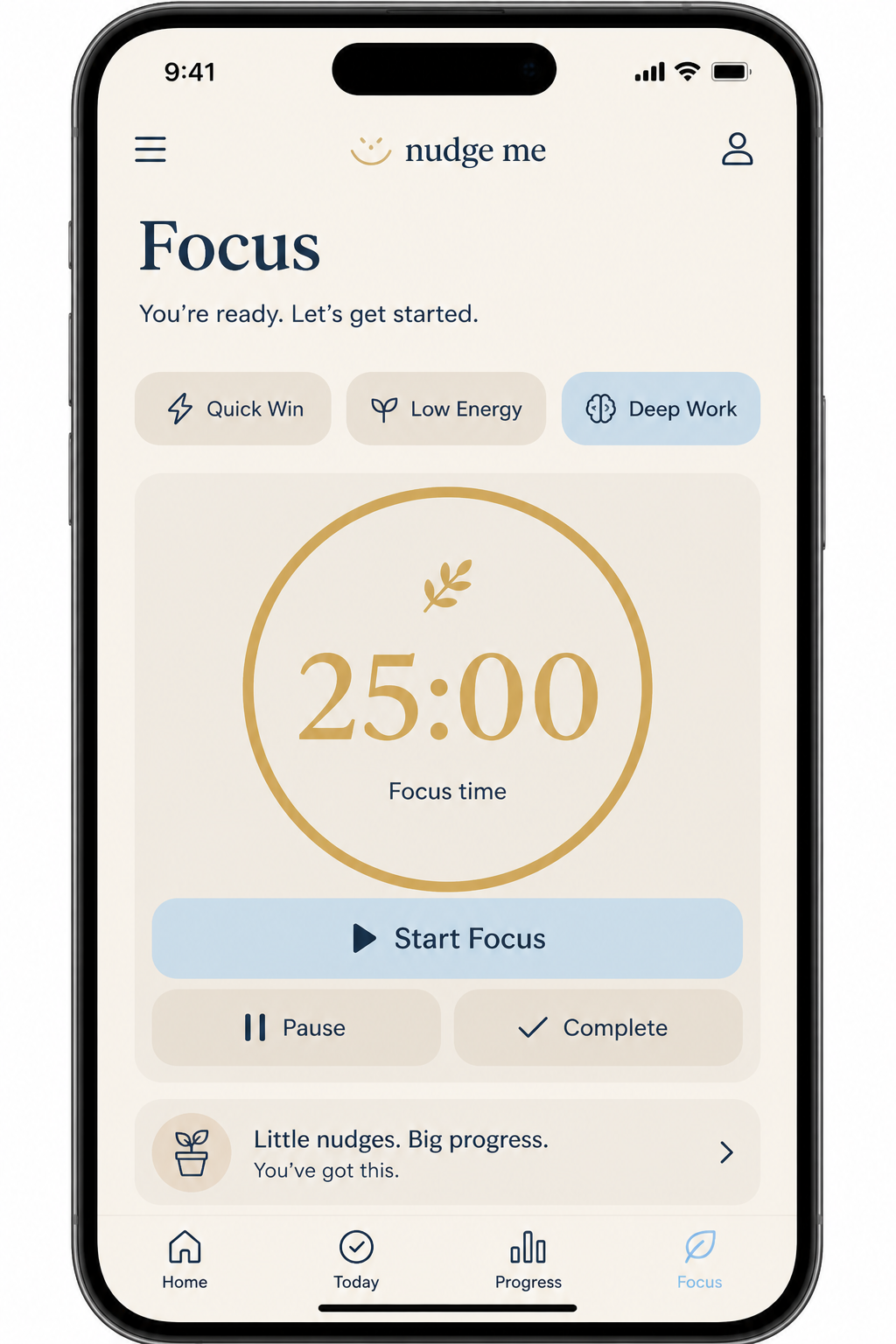
- Open Focus.
- Pick a mode: Quick Win, Low Energy, Deep Work, Project Step, or Anything.
- Choose a timer length (15, 25, 45, or 60 minutes — default is set in Settings).
- Tap Start Focus. Use Pause, Complete, Break, or Skip as you need.
When a session finishes, you see a quiet completion card. There is no pressure to “win” — only to begin.
9. Voice, speak & hear
| Control | What it does |
|---|---|
| Say it / mic on a field | Turns speech into text for capture or a single field. |
| Speaker / Hear | Reads text aloud (titles, leaving-home checklist, and more). |
| Speaking reminders | When a reminder fires, the app can speak the reminder text. |
In Settings → Voice, turn Voice to text and Text to voice on or off.
10. Important documents
On most nudge detail screens you can attach files under Important documents. Categories include Identity, Driving, Mobility, Access, Tax, Insurance, Medical, and Other.
- Upload file, Photo, or Scan
- Open or remove an attachment any time
- Attachments are stored encrypted on your phone
11. Leaving places
Optional leaving reminders help you check phone, wallet, keys (or your own list) when you leave Home, Work, School, or a Safe place.
- Open More → Settings → Leaving places (places can also be edited on Profile).
- Turn on Leaving reminders.
- Set each place with postcode or GPS, and how far you must move (5–100 m).
- Edit the checklist items and preview the spoken prompt with Hear.
Allow location permission when iOS asks — including background location if you want reminders when the app is closed.
12. My Crew & support
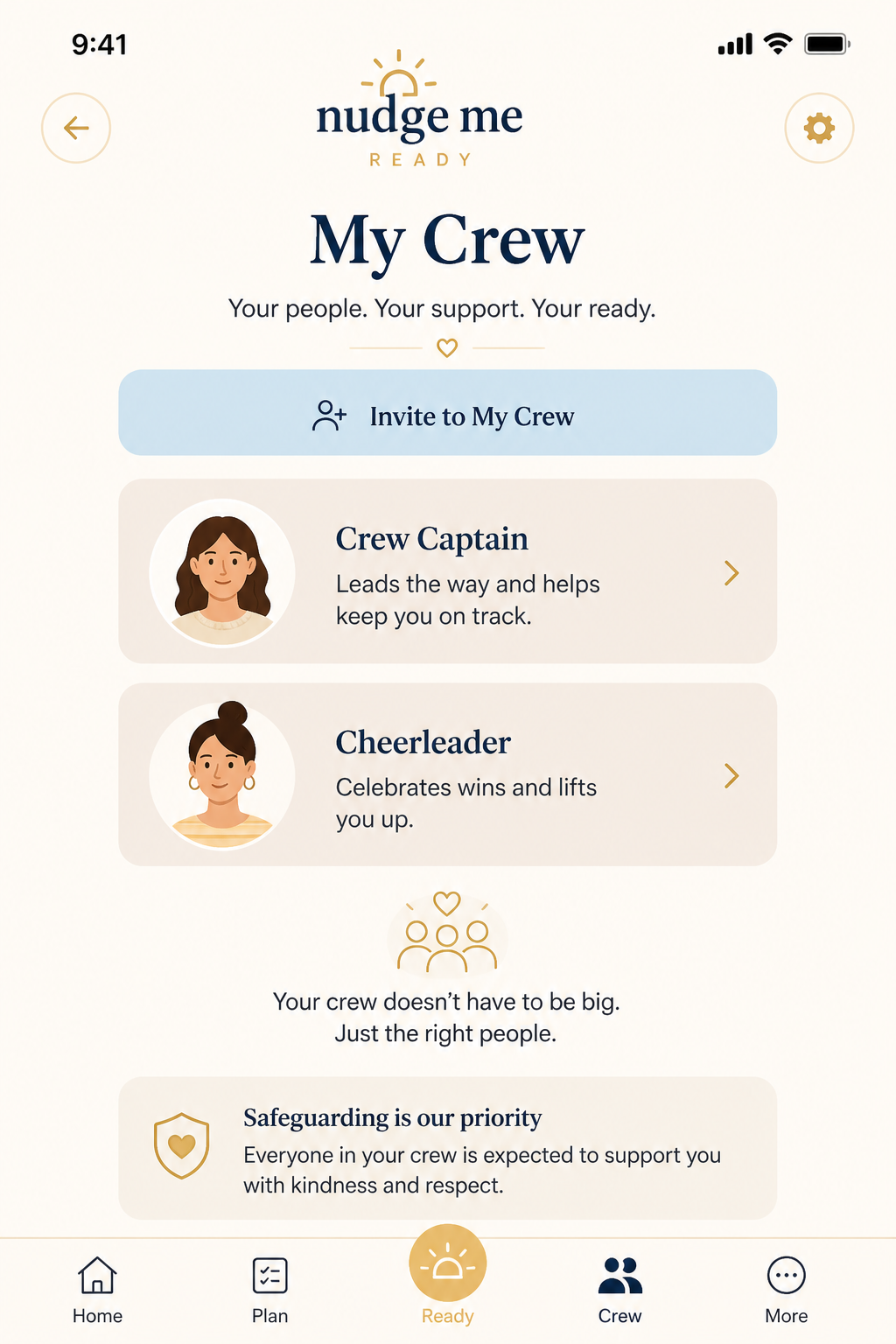
Invite someone
- Open My Crew (from Home or More) and tap Invite.
- Choose Email, SMS, WhatsApp, or Copy link.
- Follow the steps for contact, profile, roles, and permissions.
- Share the invite. They open it on a phone with Nudge me Ready installed.
Roles (examples)
Crew Captain, Guardian, Guide, Anchor, Cheerleader, Observer, Admin — you choose what each person can see.
Crews I Support
If someone invites you, accept from More → Crews I Support, then switch whose nudges you are viewing when needed.
13. Ask for Help
When you want a gentle hand from your village:
- Open Ask for Help (from Task Buddy / Help routes in the app).
- Choose what you need: Encourage me, Remind me, Stay with me, or Help break it down.
- Tap Send to my village and share via Messages, email, or the system Share sheet.
If you cancel the share sheet, a draft can stay queued on the device so you can try again later.
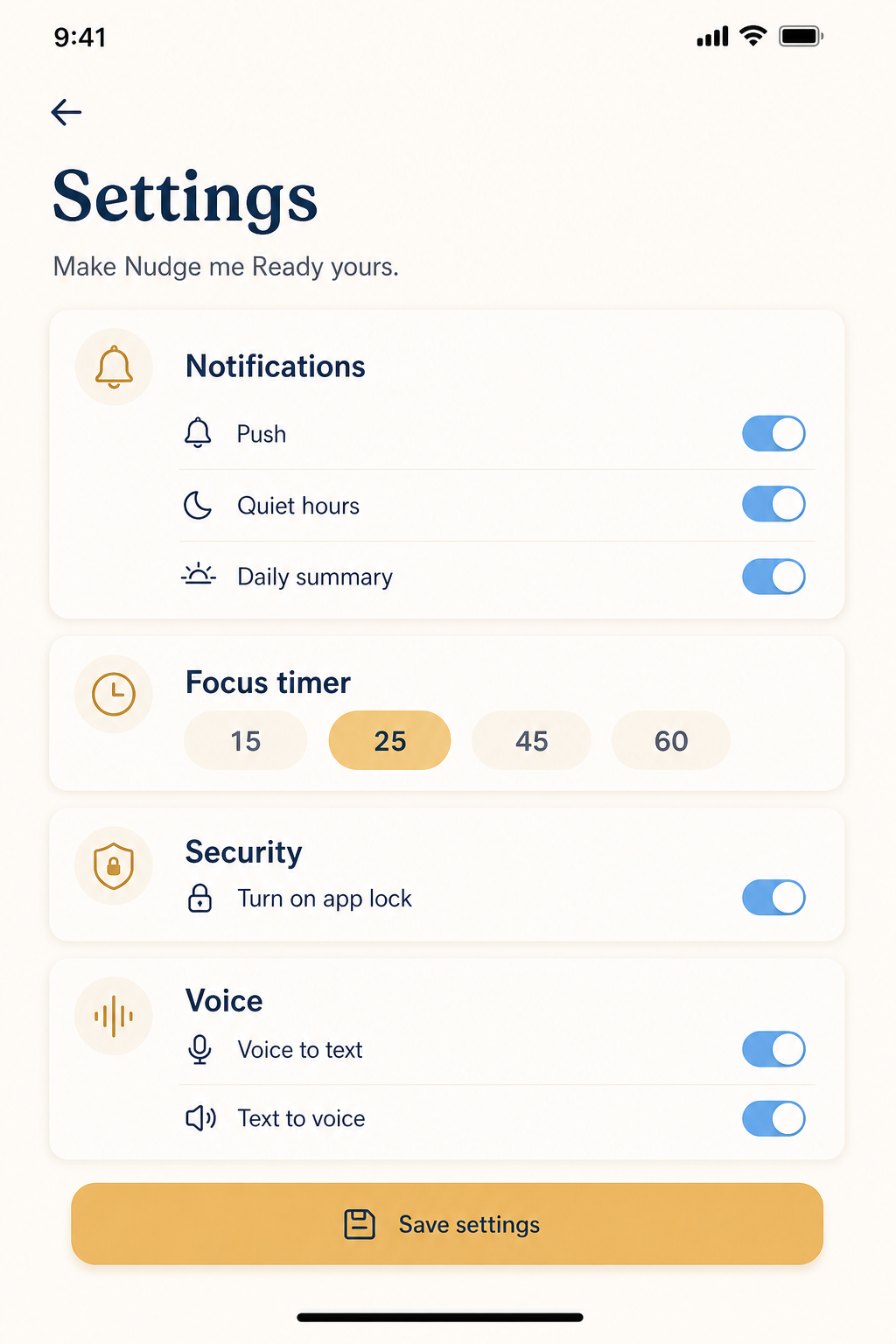
14. Settings
| Section | Options |
|---|---|
| Notifications | Push; Quiet hours (holds alerts overnight); Daily summary (“Your day ahead”) |
| Focus timer | Default 15 / 25 / 45 / 60 minutes |
| Leaving places | Places, distance, checklist, spoken preview |
| Contacts & calendars | Use phone contacts; optional calendar linking for appointments and events |
| Voice | Voice to text; Text to voice |
| Security | App lock, Face ID, recovery email and code, lock now |
| Privacy & support | Opens privacy and support information |
| Data and backup | Cloud backup not available yet; clear completed or selected types; clear all nudges |
| Account | Name, email, phone, avatar; default reminder preference |
Tap Save settings when you are done, or Discard to leave changes.
Profile picture and home places can also be edited under More → Profile.
15. Forgot PIN or password
- On the sign-in screen, tap Forgot password? or Forgot PIN?.
- Confirm with Face ID / device passcode if offered, or Email a reset link to your recovery email, or Use recovery code.
- Email links open https://nudgemeready.app/recover and only work on the phone where the app is installed (usually valid for 24 hours).
- Choose a new PIN or password, then continue.
Still stuck? Email support@nudgemeready.app — support cannot see your encrypted data, but can help you through the steps.
16. Privacy & data
- Nudges, notes, attachments, crew details, and settings stay on this phone and are encrypted at rest.
- This version does not sync to the cloud. Uninstalling the app removes local data.
- Permissions (microphone, speech, location, contacts, calendar, Face ID, photos) are only used for the features you turn on.
- Full policy: Privacy policy
17. Tips & troubleshooting
Face ID, voice, calendar, or contacts missing?
Those need a full TestFlight (or development) install, not Expo Go. Update to the latest TestFlight build after native changes.
Notifications feel quiet
Check iOS Settings → Nudge me Ready → Notifications, then in-app Push and Quiet hours. Daily summary needs Push turned on.
Invite link does nothing
Install the app first, then open the invite on the same phone. Links look like nudgemeready.app/invite/… and should hand off into the app.
Report a problem
Email support@nudgemeready.app with your iPhone model, iOS version, what you were trying to do, and a screenshot if helpful.